IGV 3.0 Beta - May 2026
#This section describes new features and other major updates introduced in the IGV 3.0 Beta. It can be downloaded from here.
TABLE OF CONTENTS
- Track size and placement
- Menu layout
- Reference genomes
- Hosted tracks and track hubs
- Sessions
- New tracks
- HGVS notation and ClinVar links
- Misc new alignment track features
- Visual themes and dark mode
Track size and placement#
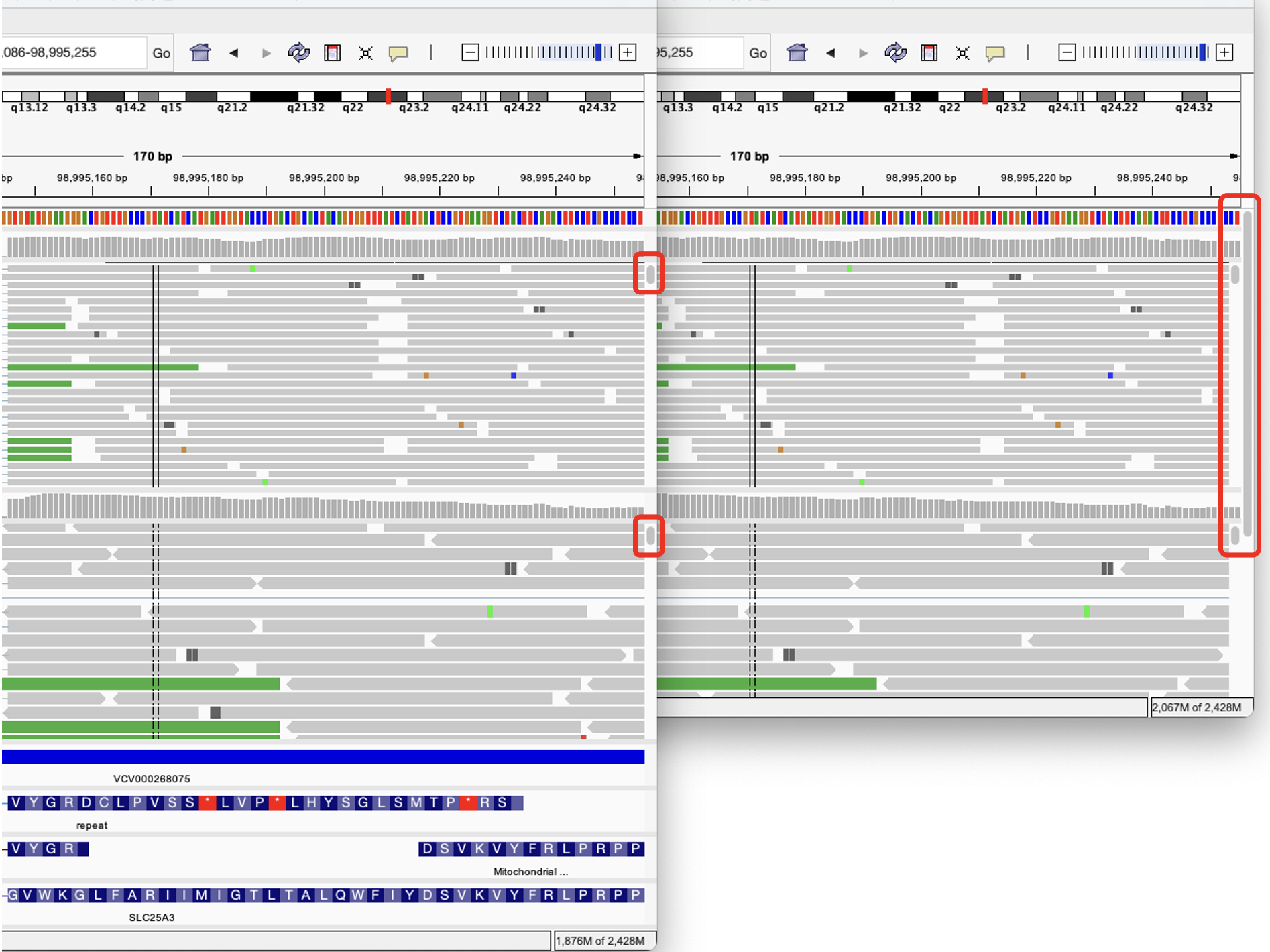
In previous versions of IGV, the main part of the IGV window that contains the tracks was divided vertically into one or more panels. Each panel could contain one or more tracks, and the panels could be resized by dragging the horizontal dividers between them. A panel scrollbar was displayed if the content exceeded the height of the panel. However, all panels had to fit within the main window; there was no scrollbar to allow panels to scroll out of view.
In IGV 3.0, the track area is no longer divided into panels. Instead, all tracks are placed in a single area that can be scrolled vertically if the tracks do not all fit in the window. Each track can be resized via the track's popup menu or by dragging the horizontal divider between tracks. Some track types (e.g. alignment tracks) have rows of data that can scroll vertically if they do not fit within the height of the track. These data rows can also be resized via the track's popup menu to allow more or less data to be visible within the track height.
The two screenshots below show the same IGV 3.0 session with two alignment tracks and four annotation tracks, but the IGV window in the screenshot on the right has been resized to a smaller height. Both show scrollbars in the two alignment tracks as the track height does not accommodate all the alignment rows. The screenshot on the right shows an additional scrollbar for the whole track area, as the smaller window height does not accommodate all the tracks.
To change the order of the tracks in the IGV window, you can either
- use the View > Reorder Tracks menu item, or
-
click on a track's drag handle (it looks like a stack of horizontal lines to the left of the track's name) and drag and drop it to a new position.

Menu layout#
The IGV menu bar has been reorganized and has additional features. Major changes include:
-
Changes to the File menu:
-
Load from File and Load from URL have been renamed Load Tracks from File and Load Tracks from URL to clarify that these menu items are for loading tracks.
-
Sample information files are now loaded through new menu items in the File menu: Load Sample Info from File and Load Sample Info from URL.
-
The menu items for controlling sessions have been moved from the File menu to a new top-level Sessions menu.
-
Hosted tracks previously found by selecting Load from Server are now found in a new top-level Track Hubs menu.
-
-
The Genomes menu has a new entry for selecting the default annotations tracks for a reference genome. Loading hosted genomes has also changed, as described in the section on Reference genomes below.
-
The new Track Hubs menu provides access to the hosted tracks previously found by selecting File > Load from Server, as well as public track hubs hosted by the UCSC Genome Browser and other track hubs that can be accessed via URL. The section below on Hosted tracks and track hubs describes this in more detail.
-
The new Sessions menu does not include the items New Session and Reload Session that used to be in the File menu. Instead, there is a new Reset Session menu item that will reset the state to either the last loaded session file, if one has been loaded, or clear all the currently loaded tracks if no session file has been loaded. Other session-related changes are described in the section on Sessions below.
-
Two new items have been added to the View menu:
-
Show Selection Checkboxes displays checkboxes next to track names that can be used to select multiple tracks and then perform operations on them by right-clicking on one of the selected tracks and choosing an operation from the pop-up menu.
-
Reorder Tracks opens a window that allows you to reorder tracks by dragging and dropping them in the list.
-
-
The Tracks menu has been removed. Most of the items have alternatives:
-
The items Sort Tracks, Group Tracks, and Filter Tracks have been moved to the track popup menu for multi-sample track types that support those operations. The items are now named Sort Samples by Attribute, Group Samples by Attribute, and Filter Samples by Attribute.
-
The item Overlay Data Tracks has been moved to the track popup menu for quantitative data tracks as Overlay Tracks. It is visible only when multiple tracks are selected.
-
Set Track Height in the old Tracks menu would set all the tracks to the same specified height. Instead, you can now multi-select all the tracks or a subset of them, right-click on one of them to bring up the popup menu, and select Set Track Height. In IGV 3.0, you select multiple tracks by using the checkboxes that are displayed when you select View > Show Selection Checkboxes.
-
Use the
 button in the toolbar instead of the Fit to Window item in the old Tracks menu.
-
The new menu structure is as follows:
File
Load Tracks from File
Load Tracks from URL
Load Sample Info from File
Load Sample Info from URL
Save PNG Image
Save SVG Image
Exit
Genomes
Load Genome from Host
Load Genome from File
Load Genome from URL
Select Default Annotations
Remove Genomes
Track Hubs
[List of categories of default tracks for the current reference genome]
[List of user-selected track hubs]
Select Track Hubs
Add Track Hub from URL
Sessions
Load Session from File
Load Session from URL
Save Session
Reset Session
Autosaved Sessions
View
Preferences
Show Selection Checkboxes
Show Name Panel
Set Name Panel Width
Show Attribute Display
Select Attributes to Show
Show Header Panel
Reorder Tracks
Go to
Regions (has not changed in 3.0)
Region Navigator
Gene Lists
Export Regions
Import Regions
Tools (has not changed in 3.0)
Run Batch Script
Run igvtools
Find Motif
BLAT
Combine Data Tracks
Help (has not changed in 3.0)
User Guide
Help Forum
About IGV
Reference genomes#
When selecting a reference genome from the Genomes > Load Genome from Host menu, you will now see a list of all genomes hosted at the UCSC Genome Browser GenArk site and selected other genomes. The list of GenArk hosted genomes is retrieved in real time from the UCSC server, so it is always up to date. In previous releases, the list contained a much shorter curated list of genomes.
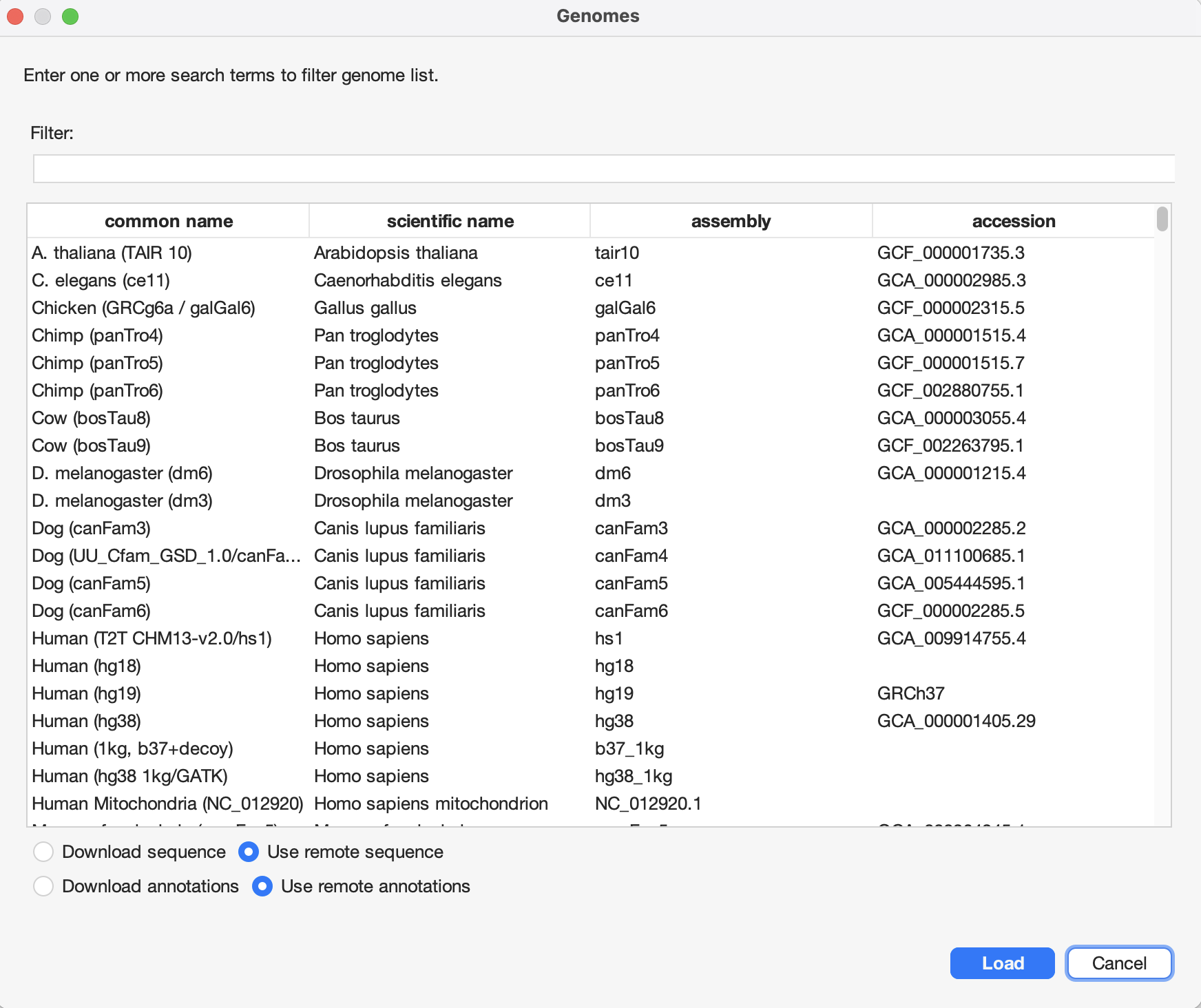
By default, the curated genomes from earlier IGV releases is presented at the top of the list. The list can be filtered by typing one or more terms in the search box at the top of the window. Or sort the list by clicking on any of the column headers. To select a genome, click on the row for that genome and then click the Load button.
By default, IGV will access the UCSC server on demand to load the sequence and annotations in view as you move between different loci in the genome. Alternatively, you can download the sequence and annotations to your local computer by checking the radio buttons for Download sequence and Download annotations. This will allow IGV to function without an internet connection, but may require considerable disk space as it will download the complete sequence and annotation files.
When you click the Load button, a new window will open that allows you to select the default annotation tracks to be loaded with the genome. The tracks are presented in categories, and you can expand or collapse a category by clicking on the + or - sign to the left of the category name. Note that some categories are presented as collapsed when you open the window. Select one or more tracks by checking the boxes by their name, and click OK.
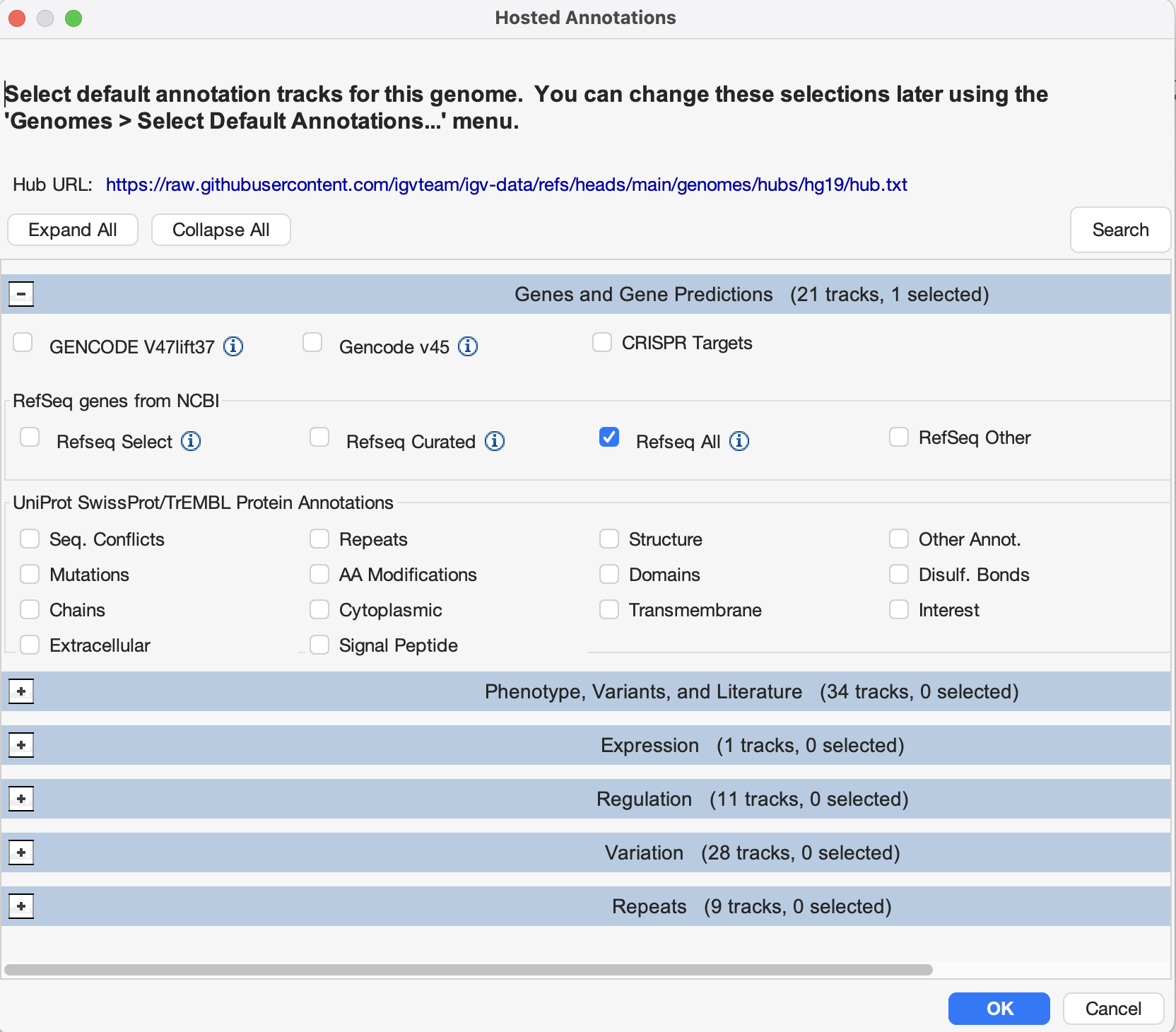
Once loaded, the selected genome will also be added to the genome dropdown menu in the IGV toolbar. Whenever you load the genome from the dropdown, the default annotation tracks you selected will be loaded automatically. To change the default annotation tracks for a genome, use the Genomes > Select Default Annotations menu item.
Hosted tracks and track hubs#
Hosted tracks that previously were loaded via the File > Load from Server menu are now made available through the Track Hubs menu. The tracks are organized into categories that are listed at the top of the menu. Click on a category name to see the list of available tracks in that category.
At the bottom of the Track Hubs menu are two items for connecting to UCSC-style track hubs.
-
Click on Select Track Hubs to open a window that lists all public track hubs from the UCSC Track Hub Registry that are relevant for the current reference genome. The list is retrieved in real time from the UCSC server, so it is always up to date. The list can be filtered by typing one or more terms in the search box at the top of the window. Or sort the list by clicking on any of the column headers. Select one or more hubs by checking the boxes by their name and then click the OK button to add them to the Track Hubs menu.
-
Click on Add Track Hub from URL to access any track hub by entering its URL. This opens a window in which you can paste the URL of the hub's
hub.txtfile; then click OK to add the hub to the Track Hubs menu. It can be a private hub that is accessible via URL on your intranet or a public hub.
To load tracks from a hub that was added to the menu by either of these methods, click on the hub name in the Track Hubs menu. This opens a window that lists all tracks in the hub. A warning will be presented if the hub does not contain any tracks that are compatible with IGV. Select one or more tracks by checking the boxes by their name, and click OK to load them.
To remove hubs from the menu, click on Select Track Hubs, uncheck the hubs to be removed, and click OK. If any hubs were added by URL, they are also listed in the Select Track Hubs window and can be removed in the same way.
The hubs remain in the Track Hubs menu across IGV sessions. The state of the menu is stored in the hubs.txt file in the igv folder in your user home folder.
Sessions#
Sessions are now loaded and saved from a new top-level Sessions menu, as described in the section on IGV menu layout above.
The session file format has also changed. Sessions are now saved in a new JSON format that replaces the old XML format. Note however that IGV 3.0 can still load session files in the old XML format that were saved in earlier versions of IGV. The new JSON format is the same format used by the IGV-Web app, and so session files are now compatible between the desktop application and the web app. However, not all features are supported in both apps so some features may not be preserved when loading a session saved in one app into the other. The new JSON format is also more compact and easier to read and edit than the old XML format.
New tracks#
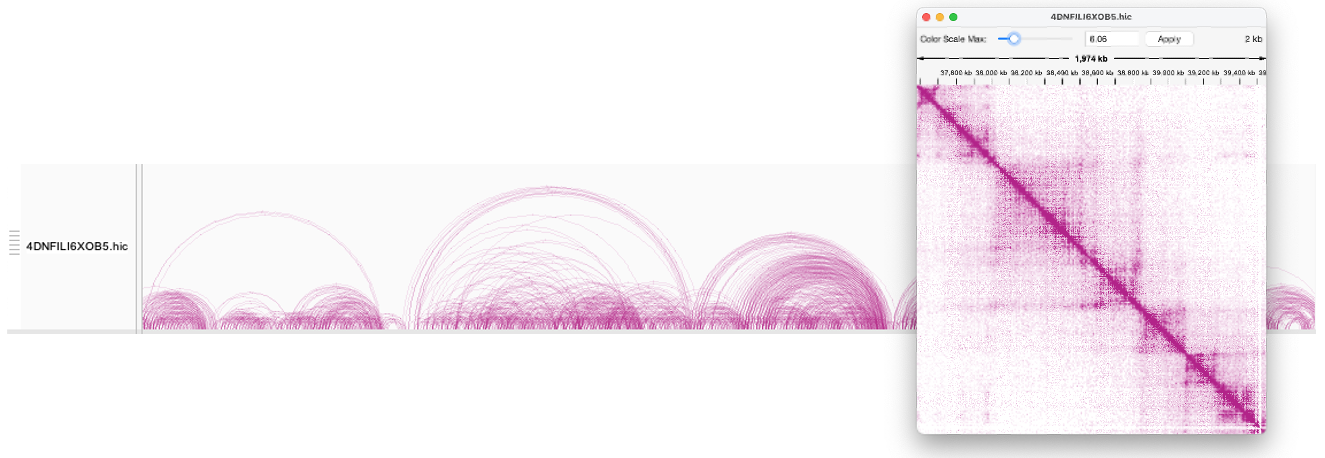
HIC files are now supported. HIC files are a format for storing Hi-C contact matrices, the output from Hi-C studies of how genomes are folded in three dimensions. The tracks are rendered as arcs connecting the genomic regions that are in contact. From the track's popup menu you can display a 2D contact heatmap in a separate window. The screenshots below shows an example of a HIC track and the corresponding contact map view.
Copy number data from a multi-sample SEG file is now displayed as a single track with one row per sample, instead of as multiple separate tracks. The sample row height can be controlled through the track's popup menu. The track height is controlled separately and a scrollbar will be displayed when the height does not accommodate all the sample rows, as described in the section on Track size and placement above.
HGVS notation and ClinVar links#
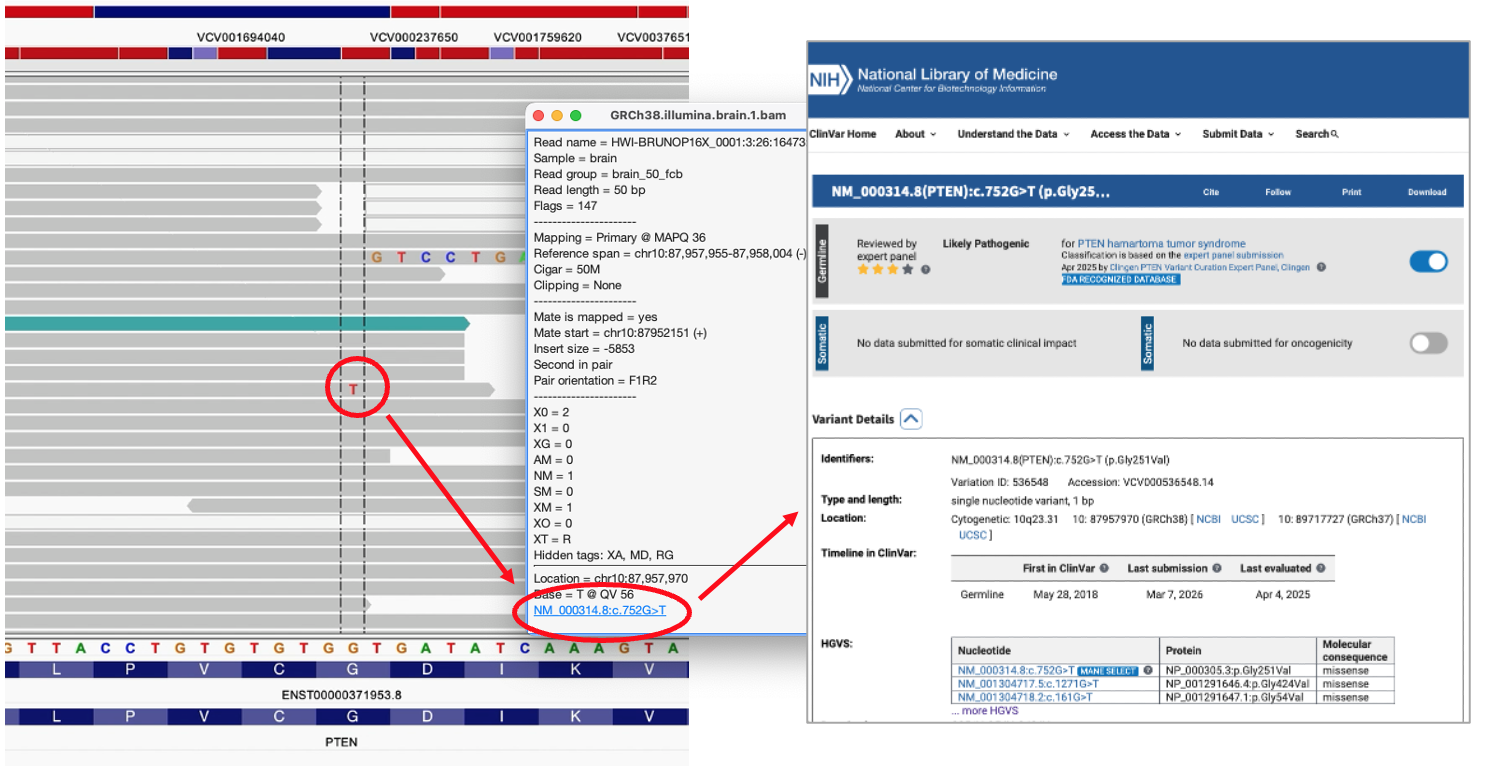
The HGVS nomenclature is an internationally recognized standard for describing variants (https://hgvs-nomenclature.org). IGV 3.0 provides HGVS support as follows:
-
Entering a variant in HGVS notation (e.g. NM_000314.8:c.752G>T) in the search box will jump to the corresponding genomic location.
-
When you click on a variant an alignment track, the corresponding HGVS notation is displayed in the popup info. If the variant has an associated ClinVar record, a link to the ClinVar record at NCBI is also provided.
Misc new alignment track features#
-
You can now automatically apply the last sort command in alignment tracks when you jump to a new locus. This behavior is disabled by default. To enable it, check the box labeled Automatically apply last sort command when changing locus in the Alignments tab of the View > Preferences window. When this option is not enabled, the keyboard shortcut Ctrl-S can be used to apply the last sort command at the current locus, as in previous versions of IGV.
-
The center line is now displayed by default in alignment tracks. The center line can be turned off in View > Preferences > Alignments.
-
The following two new ways of selecting alignments are now supported. You can also select an alignment by Cmd-clicking on it, as in previous versions of IGV.
-
When you click on Select by name in the track popup menu, you can now select multiple read names by entering a comma-separated list of read names. In previous versions of IGV, only a single read name could be entered for selection.
-
Select by base at position is a new option in the track popup menu that will select all the alignments that have the same base call at the same locus as the one you clicked on.
-
-
Group alignments by > selected is a new option that will group all the selected alignments together at the top of the track.
-
Color alignments by > split is a new option that will highlight with color all the alignments that have split or chimeric alignments.
Visual themes and dark mode#
A new feature in the General tab of the View > Preferences window allows you to select a visual theme for IGV. Two of the themes support a dark mode, which may be easier on the eyes in low-light environments. Switching to a different theme will require a restart of IGV before it takes effect.